

Reliable connectivity depends on precise configuration, especially when optimizing mobile networks. This guide explains how to set up Claro Colombia’s DNS and APN settings to ensure consistent speed, stable Configure access, and enhanced browsing performance. Correct configuration eliminates latency issues, improves data transfer, and strengthens connection reliability across devices. Whether using a smartphone, tablet, or modem, following each step guarantees seamless integration with Claro’s network infrastructure.
The process requires only a few minutes, yet it significantly impacts connectivity quality. Understanding how DNS and APN parameters interact empowers users to maintain efficient network performance and troubleshoot common issues independently. Implement these settings to achieve faster response times, improved stability, and a smoother, uninterrupted internet experience.
Read More: Don’t Miss Out! Join Free Fire Max and Start the Action in Just Minutes!
Configure Claro Colombia’s DNS Server
The Domain Name System (DNS) is a fundamental component of Internet infrastructure, responsible for translating human-readable domain names (for example, example.com) into numerical IP addresses (such as 192.168.0.1).
This process enables browsers and applications to locate and connect to online resources efficiently. Claro Colombia, one of the country’s leading Internet service providers, offers its own optimized DNS servers to ensure faster resolution times and enhanced browsing stability for its users.
Steps to configure Claro Colombia’s DNS server:
- Open your device’s network settings.
- Access the Wi-Fi network settings section.
- Select the Wi-Fi network currently in use.
- Enter the advanced settings of that network.
- Set DNS configuration to Manual.
- Input the following server addresses:
- Primary DNS: 200.21.200.10
- Secondary DNS: 200.21.200.80
- Save the changes and restart your device if required.
Once configured, your device will use Claro’s DNS infrastructure, improving connection reliability and browsing performance.
Configure Claro Colombia’s APN
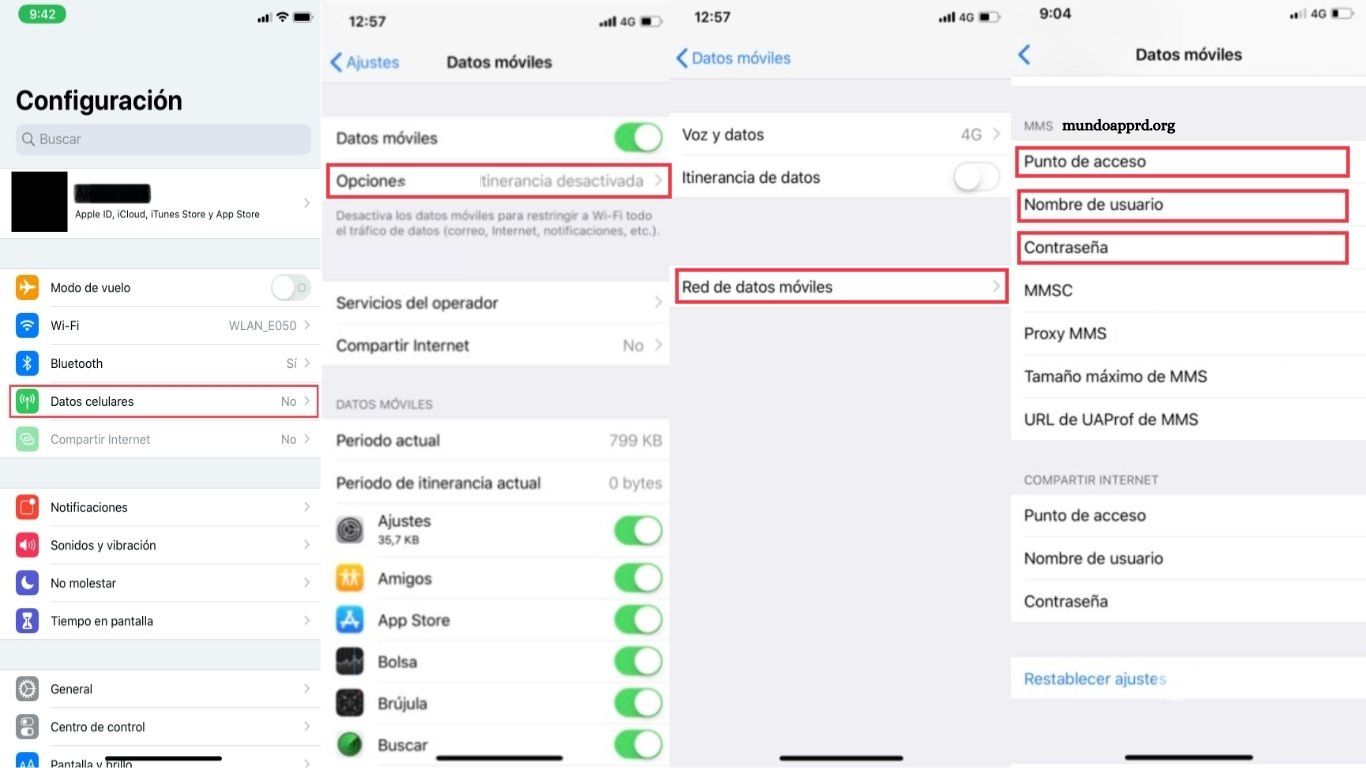
The Access Point Name (APN) is a critical configuration that allows mobile devices to connect to Claro Colombia’s data network. Proper APN setup ensures smooth access to mobile internet services, including browsing, messaging, and app connectivity. Without accurate APN details, devices may experience limited or no data access. Follow these steps to configure Claro Colombia’s APN correctly.
Steps to configure the APN:
- Open your device’s Settings.
- Navigate to Mobile Networks or Data Connections.
- Select Access Point Names (APN).
- Tap Add New APN or edit an existing one.
- Enter the following information:
- Name: Claro Colombia
- APN: internet.comcel.com.co
- Proxy: (leave blank)
- Port: (leave blank)
- Username: (leave blank)
- Password: (leave blank)
- Server: (leave blank)
- MMSC: (leave blank)
- MMS Proxy: (leave blank)
- MMS Port: (leave blank)
- MCC: 732
- MNC: 001
- Authentication Type: PAP
- APN Type: default
- Save the configuration and restart your device if necessary.
Once completed, your device will automatically connect to Claro Colombia’s Don’t Miss Out! Join Free Fire Max and Start the Action in Just Minutes!data network, ensuring stable and reliable internet access.
Frequently Asked Questions
What is DNS and why do I need to configure it?
DNS (Domain Name System) translates website names into IP addresses, allowing your device to locate and connect to websites efficiently. Configuring Claro Colombia’s DNS can improve browsing speed, reduce connection errors, and enhance overall network performance.
What is an APN and why is it necessary?
APN (Access Point Name) is a network setting that enables your mobile device to access Claro Colombia’s data services. Without the correct APN, mobile internet and MMS services may not function properly.
Can I use the DNS and APN settings on any device?
Yes. These settings are compatible with most smartphones, tablets, and modems that support custom network configuration.
Do I need to restart my device after configuring DNS or APN?
Yes. Restarting ensures the new settings take effect and the device connects correctly to Claro Colombia’s network.
Will changing DNS or APN affect my current internet plan?
No. Updating DNS or APN settings does not change your data plan, usage, or billing; it only optimizes connectivity.
What should I do if my internet connection is still slow after configuration?
Try restarting your device, checking for network outages, or verifying that DNS and APN entries are correctly entered. If issues persist, contact Claro Colombia support for assistance.
Conclusion
Configuring Claro Colombia’s DNS and APN settings is a simple yet powerful way to optimize your internet and mobile data experience. Proper DNS setup ensures faster website resolution, reduced latency, and improved browsing stability, while accurate APN configuration guarantees seamless access to Claro’s mobile network services.
