

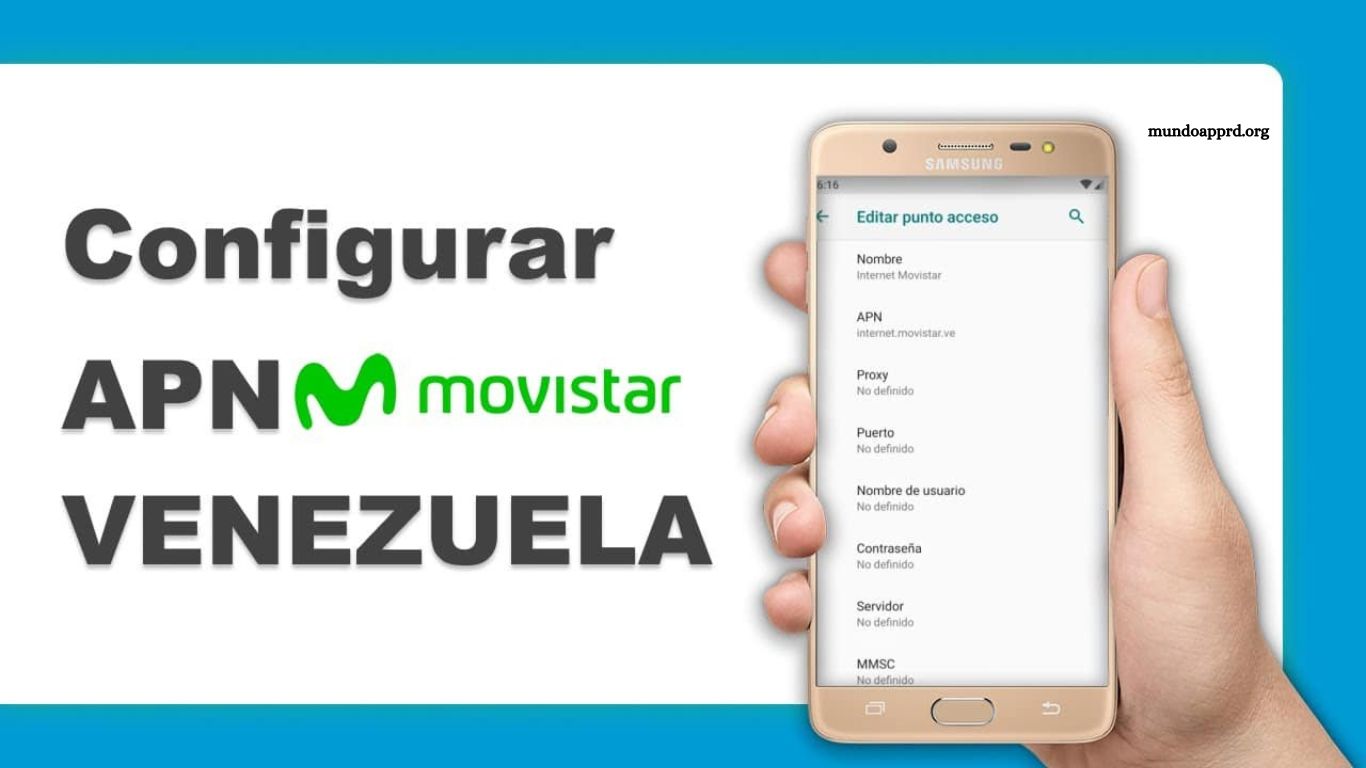
Configuring APN settings on Movistar and Digitel networks in Venezuela ensures seamless mobile data connectivity, optimal performance, and reliable access to internet services. This guide provides precise, step-by-step instructions to adjust APN settings on a variety of devices, including Android smartphones, iPhones, and tablets. Users will gain a clear understanding of essential parameters such as APN name, username, password, and authentication type, eliminating common connection issues.
Following these instructions allows uninterrupted browsing, messaging, and app usage while maximizing network speed and stability. Whether setting up a new device, troubleshooting connectivity problems, or optimizing mobile performance, this guide equips users with the knowledge to configure APNs accurately and efficiently, ensuring consistent and dependable network access across Venezuela.
Read More: Garena Free Fire Lawsuit Explained: Latest Updates, Legal Implications, and Potential Consequences
How to Configure Movistar APN in Venezuela
The Access Point Name (APN) is a critical setting that allows mobile devices to connect to the internet through cellular networks. Correctly configuring the Movistar APN ensures reliable mobile data access and optimal network performance. This guide provides clear instructions for setting up the Movistar APN on any smartphone or tablet in Venezuela.
Steps to Configure Movistar APN:
- Open your device’s Settings.
- Navigate to Mobile Networks or SIM Settings.
- Select the APN option.
- Create a new APN and enter the following details:
- Name: Movistar
- APN: internet.movistar.ve
- Authentication type, Proxy, Port, Username, Password: Leave blank
- Protocol: IPv4/IPv6
- MCC: 734
- MNC: 02
- APN type: default, supl
- Save the settings and restart your device to apply changes.
Once configured, your device will connect seamlessly to the Movistar network, providing stable and fast mobile data access.
How to Configure Digitel APN in Venezuela
For Digitel users, properly configuring the Access Point Name (APN) is essential to access mobile internet and enjoy a stable connection. This guide provides clear, step-by-step instructions to set up the Digitel APN on smartphones and tablets in Venezuela.
Steps to Configure Digitel APN:
- Open your device Settings.
- Navigate to Mobile Networks or SIM Settings.
- Select the APN option.
- Create a new APN and enter the following details:
- Name: Digitel
- APN: internet.digitel.ve
- Proxy / Port: Leave blank
- Username: webgprs
- Password: webgprs2002
- Protocol: IPv4/IPv6
- MCC: 734
- MNC: 03
- APN type: default, supl
- Save the settings and restart your device.
Verifying the entered information ensures a smooth, uninterrupted internet experience. Following these steps guarantees full access to Digitel’s mobile data services across Venezuela.
Frequently Asked Questions
What is an APN, and why is it important?
An APN (Access Point Name) is a network setting on mobile devices that allows your phone or tablet to connect to your carrier’s internet services. Proper configuration ensures stable data connection, faster speeds, and access to all mobile internet features.
Will incorrect APN settings affect my mobile data?
Yes. Incorrect APN settings can prevent your device from connecting to the internet, slow down your data speed, or cause network instability.
Can I use these APN settings on any smartphone?
Yes. These instructions work for most Android and iOS devices. Minor differences in menu names may exist depending on the device model and operating system version.
What should I do if my internet still doesn’t work after configuring the APN?
Try restarting your device. If issues persist, verify the APN details, ensure your SIM card is active, or contact your carrier for further assistance.
Can I switch between Movistar and Digitel APNs on the same device?
Yes. You can add multiple APNs on one device and switch between them depending on the SIM card in use.
Conclusion
Configuring APNs for Movistar and Digitel in Venezuela is essential for ensuring reliable mobile internet access and optimal network performance. By carefully following the step-by-step instructions and entering the correct settings, users can avoid common connectivity issues and enjoy seamless browsing, messaging, and app usage.
