

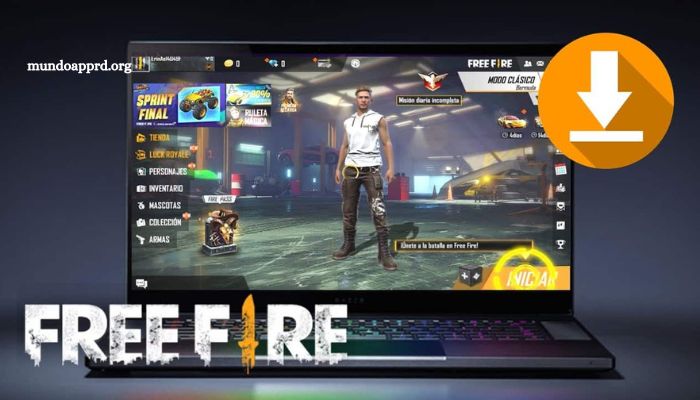
Free Fire, one of the most popular battle royale games globally, is traditionally designed for mobile platforms, but many players are now discovering the benefits of playing it on a PC. Enhanced controls, improved graphics, and a larger screen provide a more immersive and competitive gaming experience. If you’re looking to elevate your gameplay without spending a dime, this step-by-step guide will walk you through the entire process of setting up Free Fire on your PC for free.
From choosing the right emulator to optimizing your settings for peak performance, every detail is covered to ensure a seamless transition from mobile to desktop. Whether you’re a seasoned player or a beginner, this guide is your key to dominating the battlefield.
Read More: Unlock the Secrets of the Free Fire Mystery Shop Event: Grab the Best Items and Skins!
The Best Way to Download Free Fire on PC
For players eager to enjoy Free Fire on a larger screen with enhanced controls, the most effective method is to use an Android emulator. As the game’s popularity continues to soar, many gamers are turning to their PCs for a more immersive and competitive experience. Emulators offer a seamless solution by replicating the Android environment on desktop systems, enabling smooth installation and gameplay.
Leading emulators such as BlueStacks, NoxPlayer, and LDPlayer have become go-to choices, thanks to their user-friendly interfaces and consistent performance. These platforms are specifically optimized to support Free Fire, offering responsive keyboard and mouse integration, customizable controls, and flexible graphics settings.
By playing Free Fire through an emulator, users can enjoy high-definition visuals, smoother frame rates, and a more personalized gaming setup—making it an ideal alternative to mobile play.
Configuring Your PC to Play Free Fire: Minimum System Requirements
To enjoy a smooth and responsive Free Fire experience on your PC, it’s important to ensure your system meets the minimum technical requirements. These baseline specifications help avoid lag, crashes, and other performance issues that can hinder gameplay. Key components include a capable processor, sufficient RAM, a compatible graphics card, and adequate storage space.
At a minimum, your PC should have:
- Processor: Intel or AMD Dual-Core CPU
- RAM: 4 GB or more
- Graphics: Integrated or dedicated GPU with OpenGL 2.0 support
- Storage: At least 5 GB of free disk space
Additionally, keeping your operating system and hardware drivers updated is essential for stable performance. With proper configuration, you
Step-by-Step Tutorial: How to Install and Play Free Fire on PC
If you’re ready to take your Free Fire experience to the next level, playing it on a PC can offer smoother gameplay, better controls, and enhanced visuals. This step-by-step tutorial will guide you through the entire installation and setup process, ensuring a seamless transition from mobile to desktop.
We’ll begin by walking you through how to download and install a reliable Android emulator on your PC. Then, you’ll learn how to locate Free Fire within the emulator’s app store and install it just like you would on a mobile device. Finally, we’ll cover how to configure your keyboard and mouse controls for optimal comfort and performance.
Follow along to start enjoying Free Fire on your PC—quickly, easily, and without hassle.
Advantages of Playing Free Fire on PC Compared to Mobile
Playing Free Fire on a PC offers several compelling advantages over mobile devices, making it the preferred choice for many gamers seeking enhanced performance and immersion. One of the most notable benefits is the superior control system—a keyboard and mouse setup allows for more precise movements and faster reaction times than touchscreen inputs, giving players a competitive edge in fast-paced matches.
Additionally, the larger screen and higher resolution of a PC provide a more immersive and visually detailed gaming experience. From sharper graphics to a broader field of view, everything feels more engaging. PC gameplay also supports high-quality headphones or dedicated audio setups, delivering richer, directional sound that can enhance spatial awareness and overall enjoyment.
Tips and Tricks to Optimize Your Gaming Experience in Free Fire for PC
For players who enjoy Free Fire on PC, optimizing performance and gameplay can make a significant difference in both enjoyment and results. Whether you’re a seasoned veteran or just starting out, a few key adjustments can elevate your experience and sharpen your skills.
Start by fine-tuning your emulator settings—allocate sufficient RAM and CPU resources, enable virtualization in BIOS, and select the best resolution and DPI for your monitor. Customize your keyboard and mouse controls for quick reflexes and intuitive gameplay. Enable high frame rate mode for smoother action and reduce background processes to minimize lag.
Beyond technical tweaks, practice movement, aim precision, and landing strategy in training mode. These small changes can greatly enhance your performance and make every match more competitive and immersive.
Frequently Asked Questions
Can I play Free Fire on any PC?
Free Fire can run on most modern PCs, but to ensure smooth gameplay, your system should meet the minimum requirements, including sufficient RAM, a compatible processor, and a graphics card that supports OpenGL 2.0 or higher.
Which Android emulator is best for playing Free Fire on PC?
Popular and reliable emulators include BlueStacks, NoxPlayer, and LDPlayer. Each offers good performance and compatibility, but BlueStacks is often recommended for its stability and user-friendly interface.
Is it safe to download Free Fire through an emulator?
Yes, downloading Free Fire via trusted emulators is safe. Always download emulators from official websites and avoid third-party sources to prevent security risks.
Can I use my mobile account to play Free Fire on PC?
Yes, Free Fire supports cross-platform accounts. Simply log in with your existing credentials (Facebook, Google, or VK) to access your progress and purchases on PC.
How can I improve game performance on my PC?
Optimize emulator settings by allocating more system resources, updating your graphics drivers, lowering in-game graphics settings, and closing unnecessary background applications.
Conclusion
Playing Free Fire on PC offers a range of advantages—from enhanced controls and improved graphics to a more immersive and competitive gaming experience. With the help of a reliable Android emulator, proper system configuration, and a few key optimizations, you can enjoy smoother gameplay and better performance than on a mobile device. This guide has walked you through everything from installation to optimization, equipping you with the tools to elevate your Free Fire experience.
