


My PC needed a cleanup. The Task Manager showed programs I deleted months ago. Old registry keys haunted my PC, slowing bootup and cluttering my system. Maybe it was time to put IObit Uninstaller to the test.
Why I Decided to Try this Product
I have used Windows’ built-in uninstaller before. It does its job cleaning up program files, but it typically leaves traces in the registry. After years, those leftover registry keys pile up and start to cause strange errors. I wanted a tool that could dig deeper than Windows and clear out the clutter.
I had heard that IObit Uninstaller performed deeper cleaning than just removing shortcuts and program folders. It promises to remove stubborn programs, bundleware, browser plugins, and registry entries associated with each. I decided that it was time for this program to get a legitimate test drive on my PC.
Install Experience
Installation of this application on my computer was a breeze. The file size is relatively small at just under 32MB. It only took a few seconds to download on my cable connection. Setup took less than one minute, and I was never asked to install any supplementary toolbars or junk software during the process. It was already miles ahead of many other free applications I have installed.
IObit Uninstaller features a clean interface. Programs are clearly displayed with icons, install dates, and file sizes. It was easy to scan through and find the programs I knew I wanted to remove. My only real bonus was that it did not bombard me with settings or options on startup.
Actual Use of the Product
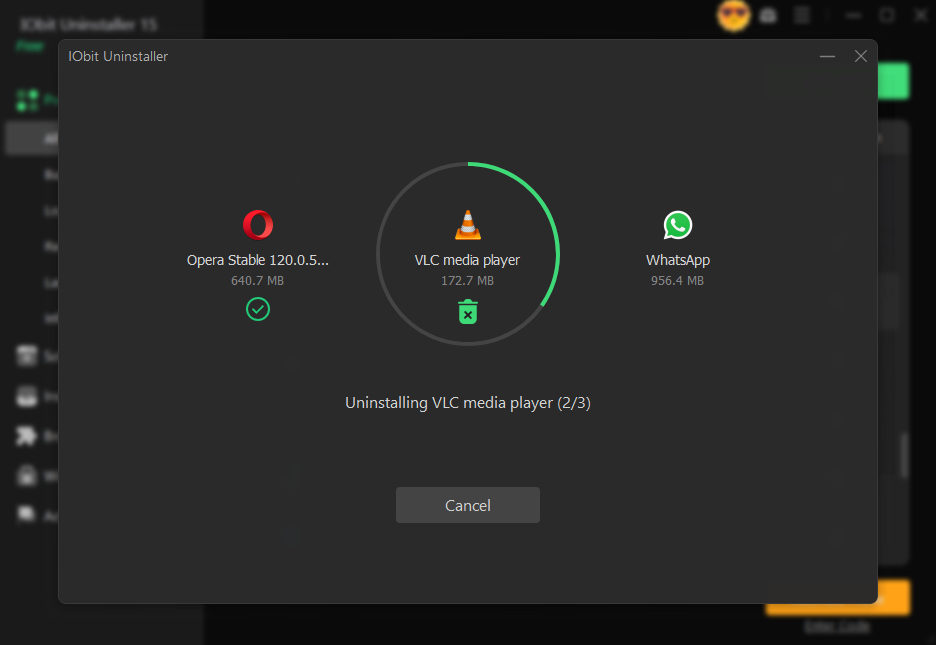
My first order of business was to test the standard uninstall feature. I chose three older programs that Windows failed to remove from my registry completely. I right-clicked uninstall on the first program, and the program began running IObit Uninstaller’s own removal system instead of Windows’. After it finished, the tool automatically scanned for leftover files and registry entries.
Here is where things got interesting. It located dozens of leftover registry keys associated with the program I uninstalled. I clicked clean, and those registry keys were wiped from my computer in seconds flat. I even booted up regedit to triple-check, and those keys were completely removed, not just hidden or disabled as some programs claim.
Removing an Un-Removable Program? No Problem!
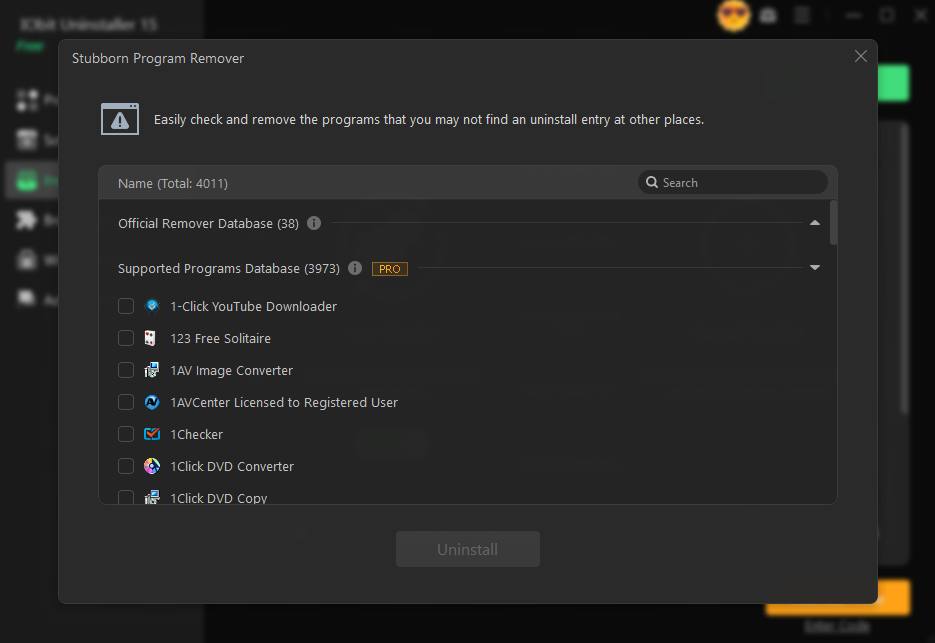
The second program on my removal list was one I had been unable to uninstall for months. Every time I went to delete it normally, I got an error message stating the uninstaller file could not be found. Removing tough programs like these is where IObit says its Stubborn Program Remover excels, as it has a database of over 4,000 known stubborn programs it can force uninstall.
I ran Force Uninstall on this program, and…voila! It worked. I checked, and the program no longer appeared in my list of installed programs, and a secondary scan found the stray registry entries it left behind. I never thought it would work after numerous failed attempts through Windows, but it did!
Play Around With Some of the Other Features
Curious, I enabled the Install Monitor before installing a small trial program on my PC. Basically, the Install Monitor tracks everything that the program installs during setup. It checks startup entries, services, registry additions, and so on. Later, when I uninstalled that program, everything seemed to go a bit smoother because the uninstaller already knew what to look for and clean up.
I can definitely see this being handy if you’re a person who tends to install a lot of trials or test software. Just uninstalling with IObit Uninstaller, a reliable uninstaller for Windows, made the process feel much cleaner than if I did it manually.
Likes and Dislikes
Just for fun, I installed a program with the Install Monitor enabled. This trick will show you all of the program files and registry additions it made. Afterwards, simply uninstall the program through IObit and watch how much cleaner everything is!
Before getting into my opinions, I want to point out that this program is meant to uninstall software, not necessarily speed up your PC. With that in mind, here are some honest pros and cons from using the program for several days:
Pros:
- Cleans out leftover registry keys that normally get left behind
- Force uninstall on a stuck program that Windows couldn’t touch
- Install Monitor allows for clean-as-can-be future uninstallations
- Interface was easy to use and never tried to install other software
- Some of the extra utilities, such as software health checks, felt like icing on the cake.
Cons:
- No real complaints that stood out to me.
My Verdict
Registry cleanup took every time I uninstalled a program. Period. Not only did that solve my initial problem of haunting registry keys, but my PC runs smoother as well. If your PC is bothering you with leftover clutter after uninstalling programs, give IObit Uninstaller a try!
