

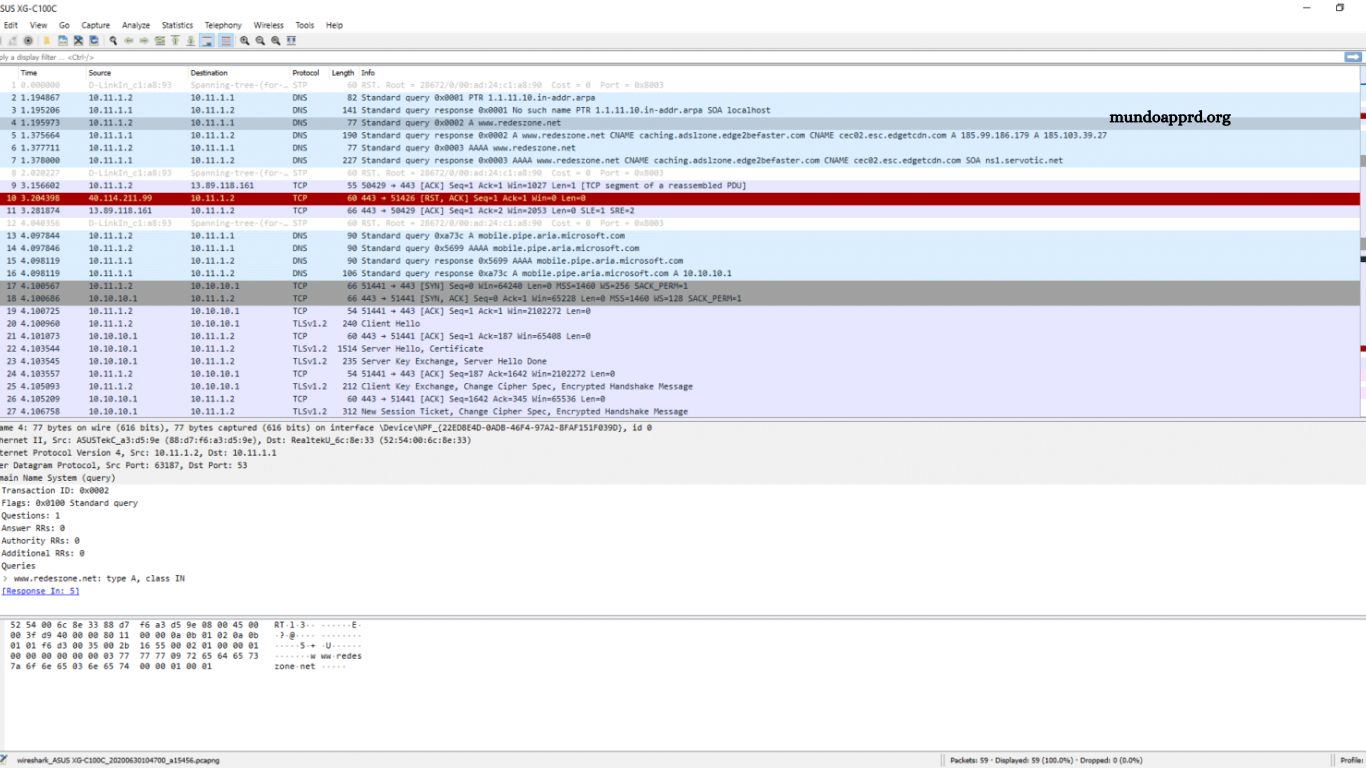
Configuring DNS on a Cisco router ensures efficient hostname resolution, faster connectivity, and improved network reliability. Proper DNS setup allows devices to translate domain names into IP addresses quickly, reducing latency and enhancing overall performance. This guide provides a structured, step-by-step approach to configuring DNS settings on a Cisco router using command-line instructions. It covers essential parameters, verification commands, and optimization techniques that strengthen network stability and responsiveness.
Whether deploying a small office network or managing enterprise infrastructure, understanding DNS configuration enhances control, simplifies troubleshooting, and maximizes operational efficiency. Follow each step carefully to achieve a precise, secure, and optimized DNS environment tailored to your organization’s networking requirements.
Read More: Explore Genially and Its Top 3 Features: Create Stunning Interactive Content!
Configure DNS on a Cisco Router
The Domain Name System (DNS) is a fundamental component of any network configuration on a Cisco router. It serves as the mechanism that translates human-readable domain names into IP addresses, enabling seamless communication between devices across the Internet. Without DNS, users would need to memorize complex numerical IP addresses for every online resource.
What is DNS?
DNS, or Domain Name System, is a hierarchical naming structure that converts domain names like google.com into corresponding IP addresses understood by network devices. This translation process ensures efficient access to web services and other network resources, simplifying connectivity and user experience.
Configuring DNS on a Cisco Router
Setting up DNS on a Cisco router is straightforward and requires only a few configuration commands. Follow these steps:
- Access the Cisco router through a secure terminal session.
- Enter privileged EXEC mode using the command:
enable - Enter global configuration mode:
configure terminal - Specify the primary DNS server using the command:
ip name-server 8.8.8.8 - Add secondary DNS servers if needed using the same command with additional IP addresses.
- Save the configuration to memory:
write memory - Exit configuration mode:
exit
Once these steps are complete, the router will use the specified DNS servers to resolve domain names efficiently, ensuring reliable connectivity and faster access to online resources.
Verifying DNS Configuration
To confirm that the DNS configuration is correct, use the command:
show ip name-server
This displays the configured DNS server addresses.
You can also verify DNS functionality by pinging a domain name, for example:
ping google.com
If you receive successful replies, the DNS setup is functioning correctly.
This configuration ensures that your Cisco router efficiently translates domain names into IP addresses, optimizing network performance and reliability.
Frequently Asked Questions
What is the main purpose of configuring DNS on a Cisco router?
Configuring DNS allows the router to resolve domain names into IP addresses. This makes it easier for network devices and administrators to access external resources without manually entering IP addresses.
Can I configure more than one DNS server on a Cisco router?
Yes. You can specify multiple DNS servers using multiple ip name-server commands. The router will query them in order of configuration until it receives a valid response.
How can I verify that DNS is functioning correctly?
Use the show ip name-server command to check configured servers and the ping command followed by a domain name (e.g., ping google.com) to test name resolution.
What happens if the DNS server becomes unreachable?
If the primary DNS server is unavailable, the router automatically attempts to use secondary or backup DNS servers configured in the system.
Can I use internal DNS servers instead of public ones like Google’s 8.8.8.8?
Absolutely. Internal or corporate DNS servers are often preferred in enterprise networks for better control, security, and faster internal name resolution.
Is DNS configuration required for a router to function?
No, it’s not mandatory for routing functionality, but it’s highly recommended. DNS improves usability, simplifies troubleshooting, and allows domain-based commands such as ping or telnet by hostname.
Conclusion
Configuring DNS on a Cisco router is a fundamental step in ensuring efficient and reliable network communication. By correctly setting up DNS servers, you enable the router to translate domain names into IP addresses quickly, improving connectivity and simplifying network management. This process enhances both user experience and operational performance by reducing delays in name resolution.
